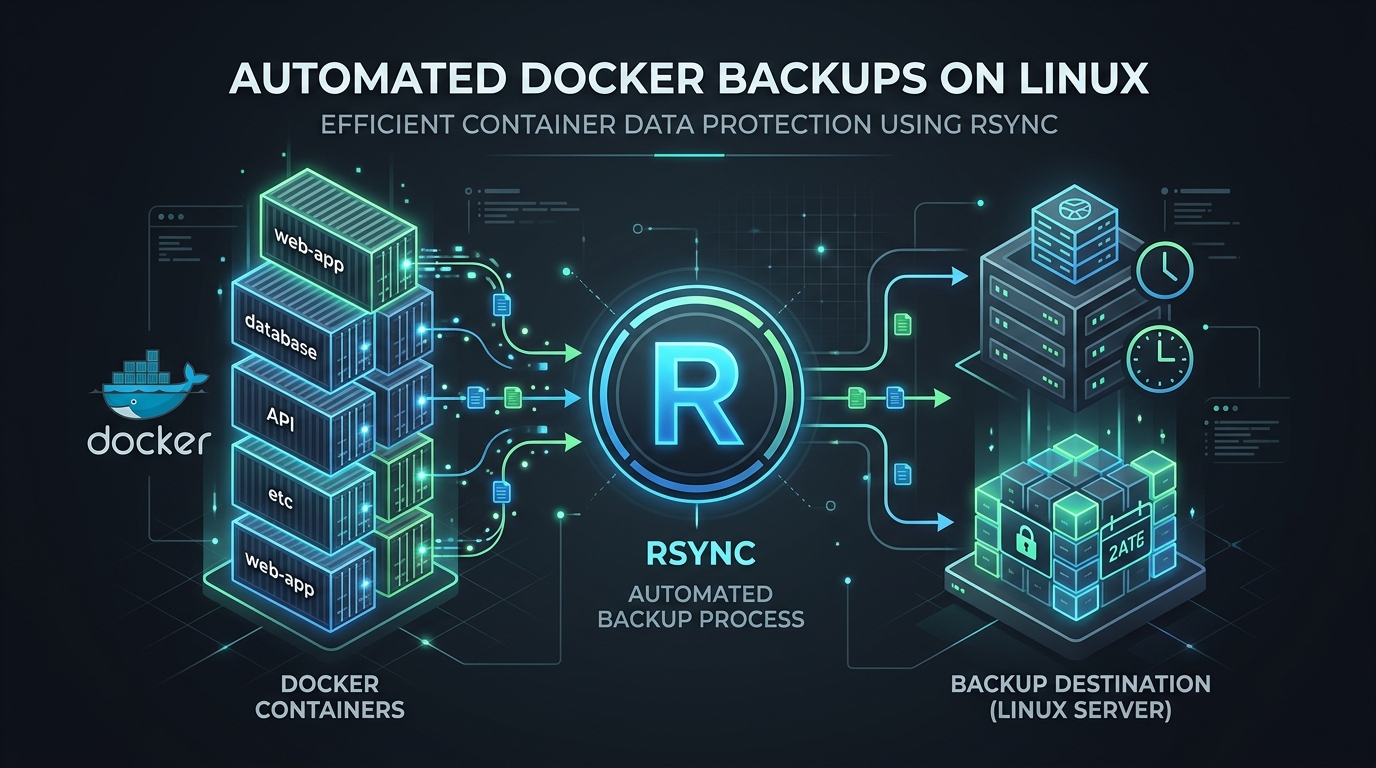
Architecting Robust Docker Data Persistence: A Production-Grade rsync Backup Strategy
In the containerized ecosystem, the “ephemeral” nature of Docker containers is a feature, not a bug. However, the data stored within volumes is persistent and mission-critical. Many administrators fall into the trap of using docker cp or simplistic tarball snapshots. While these work for homelabs, they are insufficient for production environments where consistency, automation, and speed are non-negotiable. Today, we implement a hardened backup strategy using rsync, the industry standard for differential, low-overhead data synchronization.
Prerequisites
- Root/Sudo access: Necessary for accessing Docker volume paths under
/var/lib/docker/volumes. - rsync installed: Available on virtually every Linux distribution (
apt install rsyncoryum install rsync). - Dedicated Backup Storage: An external mount, a secondary disk, or an offsite location (NFS/S3/SSH).
- Read-Only access to target: Ensure the user running the script has permission to write to the backup destination.
The Strategy: Why rsync?
Unlike standard archival tools, rsync calculates delta-transfers. If you have a 10GB database volume and only 5MB of data changed, rsync transfers only that 5MB. This reduces I/O pressure on your production disks and drastically minimizes the backup window. When combined with Docker’s pause/unpause mechanism, we achieve a high degree of data consistency.
Production-Grade Backup Script
The following script manages container state, executes the incremental sync, and handles basic error reporting. Save this as /opt/scripts/docker_backup.sh.
#!/bin/bash
# Docker Volume Backup Script
# Author: Senior SysAdmin
# Usage: ./docker_backup.sh [container_name]
set -e
# Configuration
BACKUP_ROOT="/mnt/backups/docker"
DOCKER_PATH="/var/lib/docker/volumes"
TIMESTAMP=$(date +"%Y-%m-%d_%H-%M-%S")
LOG_FILE="/var/log/docker_backup.log"
log() {
echo "[$(date +'%Y-%m-%d %H:%M:%S')] $1" | tee -a "$LOG_FILE"
}
if [ -z "$1" ]; then
log "ERROR: No container/volume name provided."
exit 1
fi
VOLUME_NAME="$1"
TARGET_DIR="$BACKUP_ROOT/$VOLUME_NAME"
mkdir -p "$TARGET_DIR"
log "Starting backup for: $VOLUME_NAME"
# Graceful Pause: Minimize write impact
log "Pausing container to ensure consistency..."
docker pause "$VOLUME_NAME" || log "Warning: Could not pause container, continuing..."
# Rsync execution
# -a: archive mode, -v: verbose, -z: compress, -H: preserve hardlinks
rsync -avzH --delete "$DOCKER_PATH/$VOLUME_NAME/_data/" "$TARGET_DIR/current/"
# Unpause
docker unpause "$VOLUME_NAME" || log "Warning: Could not unpause container."
log "Backup completed successfully for $VOLUME_NAME"
Addressing Edge Cases and Hazards
Database Consistency: The script above pauses the container, which is effective for file-level snapshots. However, for databases like PostgreSQL or MySQL, a file-level sync while the DB is running (even if paused) can technically cause filesystem-level corruption if the DB is writing to the transaction log at the exact millisecond of the pause. Best Practice: Always perform a docker exec [container] pg_dump or mysqldump before running this rsync process to ensure a logical backup exists alongside the raw filesystem backup.
Network Interruptions: If backing up to a remote server, use SSH keys with rsync. If the network drops, rsync is designed to resume where it left off, but you should implement a timeout mechanism in your cron job to prevent hung processes.
Restoration: The Critical Path
A backup is worthless if you haven’t validated the restoration process. Treat your restore procedure as a documented “Break-Glass” event.
How to Restore
- Stop the Target Container: Never restore to an active volume.
docker stop [container_name] - Prepare the Destination: Ensure the Docker volume path is empty or ready to be overwritten.
# WARNING: This deletes the corrupt/current datarm -rf /var/lib/docker/volumes/[container_name]/_data/*
- Restore the Data:
rsync -avzH /mnt/backups/docker/[container_name]/current/ /var/lib/docker/volumes/[container_name]/_data/ - Fix Permissions: Docker volumes often require specific UIDs. Ensure the files match the original container’s expected owner.
chown -R 999:999 /var/lib/docker/volumes/[container_name]/_data/ - Start the Container:
docker start [container_name]
Final Pro-Tip: The Cron Automation
To automate this, add the script to your root crontab. I recommend running it during off-peak hours:
0 3 * * * /opt/scripts/docker_backup.sh my_database_container >> /var/log/docker_backup.log 2>&1By keeping this script modular and logging to a central file, you maintain the observability required for a professional Linux environment. Remember: Test your restoration quarterly. A backup that hasn’t been tested is merely a hope, not a plan.
Leave a Reply