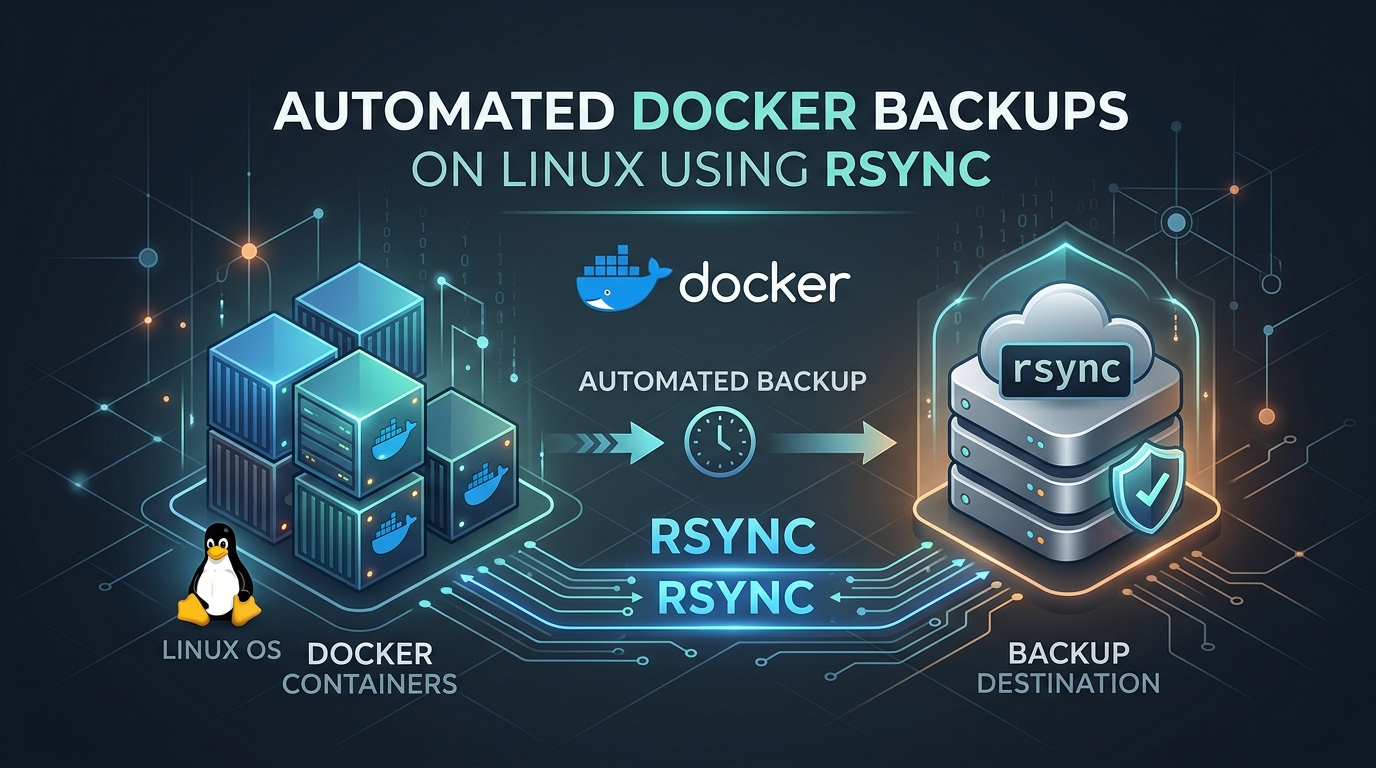
Architecting Production-Grade Automated Backups for Docker Containers with Rsync
In the containerized ecosystem, the “ephemeral” nature of containers often leads administrators to a false sense of security. While the container lifecycle is transient, your data—persistent volumes, database files, and configuration stores—is not. Relying on simple docker cp commands is a recipe for disaster. As a Senior SysAdmin, I advocate for a robust, filesystem-level approach utilizing rsync for differential synchronization. This method provides speed, efficiency, and a granular recovery path that high-level API snapshots often lack.
Prerequisites
Before implementing this solution, ensure your environment meets the following requirements:
- Root or sudo access: Necessary for accessing Docker’s internal overlay storage and volume paths.
- Rsync installed: Available on almost all distributions (
apt install rsyncoryum install rsync). - External Storage: Never store backups on the same physical disk or partition as the source data.
- Systemd: We will use timers for scheduling, which is the professional standard for Linux automation.
The Strategy: Atomic Synchronization
We do not backup the container itself; we backup the data volumes. Backing up a running container is dangerous due to write consistency issues. Our script will follow these steps: Identify volumes, trigger a brief pause or flush (if applicable), perform the rsync differential copy to a local staging area, and finally, rotate logs.
The Production-Grade Backup Script
Save this script to /usr/local/bin/docker-backup.sh. Ensure you set chmod +x /usr/local/bin/docker-backup.sh.
#!/bin/bash
# Configuration
BACKUP_SRC="/var/lib/docker/volumes"
BACKUP_DEST="/mnt/backups/docker-volumes"
LOG_FILE="/var/log/docker-backup.log"
DATE=$(date +%Y-%m-%d_%H-%M-%S)
# Error handling
set -e
exec 2>> "$LOG_FILE"
log() {
echo "[$(date '+%Y-%m-%d %H:%M:%S')] $1" | tee -a "$LOG_FILE"
}
log "Starting backup process..."
# Ensure destination exists
mkdir -p "$BACKUP_DEST"
# Perform Rsync
# -a: archive mode, -v: verbose, -z: compress, -H: preserve hard links, --delete: purge stale files
rsync -avzH --delete "$BACKUP_SRC/" "$BACKUP_DEST/current/"
# Create a snapshot (hard link) to save space while keeping history
cp -al "$BACKUP_DEST/current" "$BACKUP_DEST/snapshot_$DATE"
log "Backup completed successfully to $BACKUP_DEST/snapshot_$DATE"
Addressing Edge Cases and Consistency
Database Consistency: Rsyncing an active MySQL or PostgreSQL data directory while the engine is writing can result in corrupted database files (torn pages). Always use docker exec to run mysqldump or pg_dump into a flat file before triggering the rsync. Never assume filesystem-level snapshots are “database safe” for live systems.
Network Interruptions: If backing up to a remote server, use the --partial flag in rsync to ensure interrupted transfers can resume without restarting from scratch.
Automating with Systemd Timers
Forget cron. Cron is outdated. Create /etc/systemd/system/docker-backup.timer for precise scheduling:
[Unit]
Description=Run Docker Backups Daily
[Timer]
OnCalendar=daily
Persistent=true
[Install]
WantedBy=timers.target
Enable it with systemctl enable --now docker-backup.timer.
Restoration: The Critical Path
A backup is worthless if you haven’t tested the restore. To restore a volume, follow these steps:
- Stop the container:
docker stop [container_name]. Stopping is mandatory to prevent file locks. - Identify the volume path: Run
docker volume inspect [volume_name]to find theMountpoint. - Restore: Use rsync to move the data back from your snapshot:
rsync -av /mnt/backups/docker-volumes/snapshot_YYYY-MM-DD/volume_name/ /var/lib/docker/volumes/volume_name/_data/ - Correct Permissions: Often, restored files might have mismatched UID/GIDs. Ensure the files match the original owner:
chown -R 999:999 /var/lib/docker/volumes/volume_name/_data/(Verify UID withls -n). - Restart:
docker start [container_name].
By using hard links (cp -al), you maintain a full daily history of your volumes while consuming only the disk space of the incremental changes. This is a battle-tested strategy that provides both recovery speed and storage efficiency.
Leave a Reply