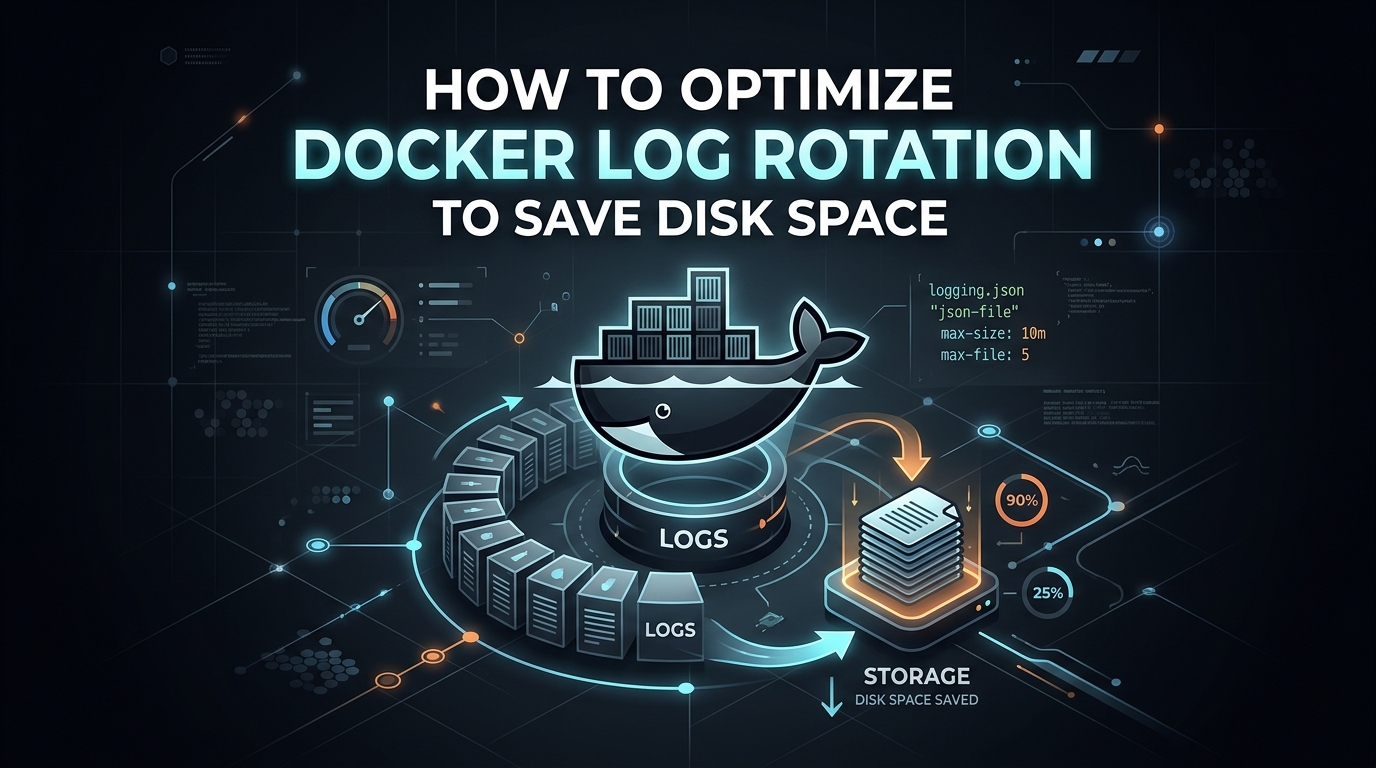
Mastering Docker Log Rotation: Preventing Disk Exhaustion in Production
In the world of container orchestration, we often focus on CPU and RAM limits, yet the most common cause of a “server down” event in a Dockerized environment is silent and insidious: disk exhaustion caused by unchecked container logs. By default, the Docker JSON-file logging driver writes to a single file per container. If your application is verbose, these files grow indefinitely until they consume every byte of available storage, leading to kernel panics and unresponsive services.
As a sysadmin, you cannot rely on defaults. You must implement a proactive log rotation strategy. This guide explores how to implement the json-file log driver settings globally to ensure your storage remains predictable.
Prerequisites
- A Linux host running Docker Engine (CE or EE).
- Root or sudo access to the host.
- Basic knowledge of YAML syntax.
The Strategy: JSON-File Driver Optimization
The json-file driver is Docker’s default, but it lacks rotation policies out-of-the-box unless configured in the Docker daemon configuration. We will set two critical parameters:
- max-size: Limits the size of a single log file before it is rotated (e.g., 10m).
- max-file: Sets the maximum number of log files to keep for a single container (e.g., 3).
The Configuration Procedure
To enforce this globally, modify your /etc/docker/daemon.json file. Note that this configuration only applies to newly created containers. Existing containers must be recreated to inherit these settings.
# Backup existing configuration
sudo cp /etc/docker/daemon.json /etc/docker/daemon.json.bak
# Update daemon configuration
cat <
{
"log-driver": "json-file",
"log-opts": {
"max-size": "50m",
"max-file": "3"
}
}
EOF
# Reload daemon and restart Docker
sudo systemctl daemon-reload
sudo systemctl restart docker
Automating Container Re-creation
Since the daemon config doesn’t affect running containers, you need a script to safely recreate them without losing critical application state if you use volumes. The following script identifies running containers and triggers a recreate.
#!/bin/bash
# Script: rotate_logs.sh
# Description: Safely re-create containers to apply new log rotation policies.
set -e
LOG_FILE="/var/log/docker_rotation.log"
log() {
echo "$(date '+%Y-%m-%d %H:%M:%S') - $1" | tee -a "$LOG_FILE"
}
log "Starting log rotation enforcement..."
# Get list of all running containers
CONTAINERS=$(docker ps -q)
for container in $CONTAINERS; do
name=$(docker inspect --format '{{.Name}}' "$container" | sed 's/\///')
log "Recreating container: $name"
# Note: In a production environment, ensure you use docker-compose
# or recreate containers with the exact original flags.
# This is a conceptual example for manual re-creation.
# docker-compose up -d --force-recreate
done
log "Process complete."
Edge Cases and Risks
Database Consistency: If your container runs a database (PostgreSQL, MySQL), simply killing and recreating it is usually safe because data is persisted in a volume. However, always ensure your volumes are mounted before recreating to prevent data loss.
Log Loss: Setting max-file to 3 means you only keep 150MB of logs (50MB x 3). If your auditing requirements demand 30 days of logs, this approach is insufficient. In such cases, use an external log aggregator like ELK, Splunk, or Graylog.
Network Interruptions: If you are using a log driver like syslog or fluentd, verify your network connectivity. If the destination becomes unreachable, the Docker daemon may block container I/O, effectively freezing your applications.
How to Restore Logs
If you discover that your rotation settings were too aggressive and you need to recover logs that have been rotated out, you must rely on your backup strategy. Docker does not provide a “restore” button for rotated logs.
- Filesystem Backups: If you use LVM snapshots or ZFS snapshots for your
/var/lib/docker/containersdirectory, revert to a previous snapshot to recover the rotated files. - Log Aggregator: If you have configured an external forwarder, you must query your log indexing database (e.g., Elasticsearch) to retrieve the historical data.
- Manual Archive: If you need to increase retention, simply edit
/etc/docker/daemon.json, updatemax-fileto a higher integer, and restart the daemon. This will apply to all containers started from that point forward.
Pro-Tip: Always monitor your disk space using df -h in combination with du -sh /var/lib/docker/containers/* to identify “rogue” containers that might be bypassing your limits due to legacy custom configurations.
Leave a Reply