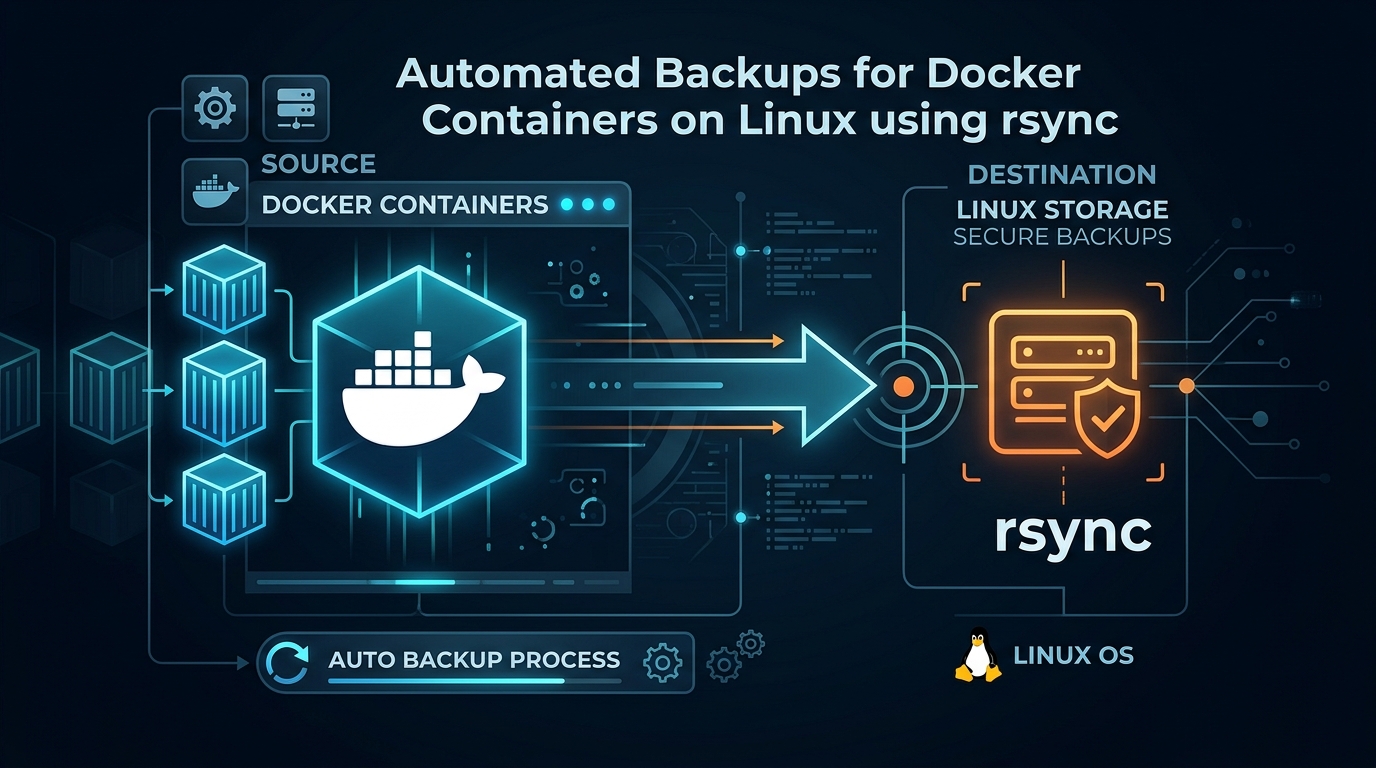
Automated Docker Container Backups with Rsync
As a Linux System Administrator, ensuring data integrity for Dockerized applications is paramount. While there are complex orchestration tools, a robust and lightweight approach involves syncing persistent volumes using rsync. This guide outlines how to automate the backup process for your containerized environments.
The Strategy
Docker containers are ephemeral, but their data resides in volumes or bind mounts. To create a reliable backup, we must identify the source directories on the host, compress the data, and synchronize it to a remote storage target. Using rsync is ideal because it handles delta transfers efficiently, saving bandwidth and time.
Step 1: Identifying Data Directories
First, inspect your running containers to locate the host paths mapping to your application volumes:
docker inspect [container_name] | grep -A 10 "Mounts"Step 2: Creating the Backup Script
Create a shell script on your host machine to handle the automation. This script should temporarily stop the database (if necessary for consistency) or simply sync the files if your application handles hot backups gracefully.
#!/bin/bash
# Backup directory configuration
SOURCE_DIR="/var/lib/docker/volumes/my_app_data/_data"
BACKUP_DEST="/mnt/backups/docker/my_app"
DATE=$(date +%Y-%m-%d_%H%M%S)
# Syncing files using rsync
rsync -avz --delete $SOURCE_DIR $BACKUP_DEST/backup_$DATE
# Remove backups older than 30 days
find $BACKUP_DEST -type d -name "backup_*" -mtime +30 -exec rm -rf {} \;
Step 3: Ensuring Consistency
For databases like MySQL or PostgreSQL, simply syncing the files while the container is writing can lead to corrupted backups. It is highly recommended to perform a dump before the sync:
# Perform a database dump
docker exec db_container pg_dump -U username dbname > /path/to/dump.sql
# Then trigger your rsync script
/usr/local/bin/backup_script.sh
Step 4: Automating with Cron
To ensure this happens automatically, add the task to your crontab. Open the crontab editor with crontab -e and add the following entry to run the backup daily at 2:00 AM:
0 2 * * * /usr/local/bin/backup_script.sh > /var/log/docker_backup.log 2>&1Best Practices for Production
- Always test your restoration process. A backup is useless if it cannot be restored quickly.
- Use SSH keys for rsync if you are pushing backups to a remote server.
- Monitor your logs. Configure email alerts if the cron job exits with a non-zero status.
- Consider using zstd or gzip to compress backup archives if disk space is limited.
Leave a Reply