Category: Uncategorized

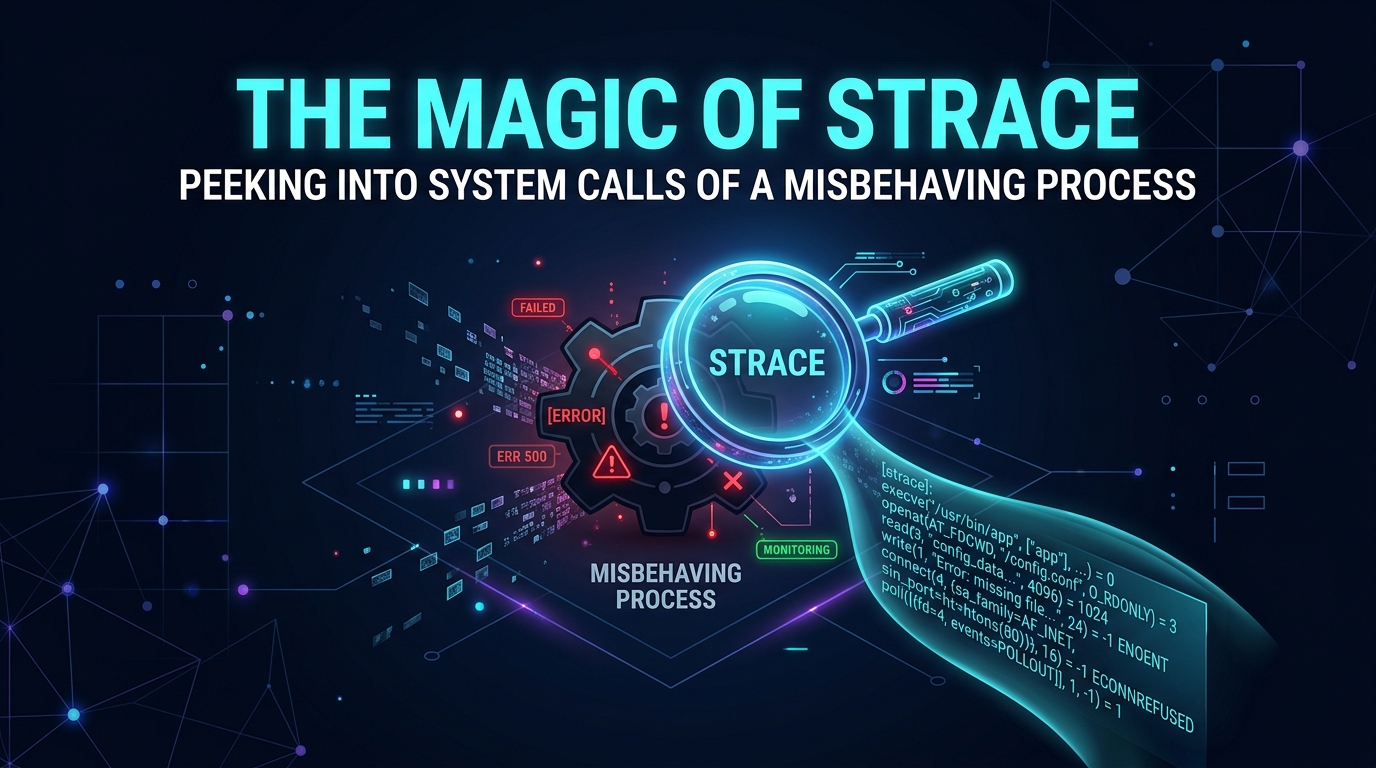
  • The Magic of strace: Peeking into System Calls of a Misbehaving Process

    The Magic of strace: Peeking into System Calls of a Misbehaving Process

    The Magic of strace: Peeking into System Calls of a Misbehaving Process

    In two decades of managing Linux environments, I’ve found that most “magic” in system troubleshooting is actually just observability. When a process hangs, returns obscure errors, or exhibits high I/O latency, the operating system is usually shouting the cause through its interface: system calls (syscalls). Enter strace, the diagnostic tool that acts as a window into the boundary between user-space applications and the Linux kernel.

    This guide moves beyond the basics. We will explore how to use strace effectively in production environments without causing a performance collapse, and how to interpret the output to fix real-world issues.

    Prerequisites

    • A Linux distribution (Debian/Ubuntu, RHEL/CentOS, or Arch).
    • Root or sudo privileges (to attach to processes owned by other users).
    • The strace package installed (apt install strace or yum install strace).
    • A basic understanding of the Linux Kernel process model.

    The Mechanics of strace

    At its core, strace uses the ptrace system call. When you attach strace to a process, it forces that process to pause every time it attempts to cross the kernel threshold. The kernel then notifies strace, which records the call, the arguments passed to it, and the return value before letting the process continue.

    Warning: Attaching strace to a high-throughput, latency-sensitive process (like a production database or a high-frequency trading engine) will introduce significant overhead. The process execution speed will drop, sometimes by orders of magnitude, because of the constant context switching between user-space, the kernel, and the tracer.

    Common Flags for Advanced Debugging

    To keep output manageable, avoid the default “dump everything” approach. Use these flags to refine your focus:

    • -p <pid>: Attach to an existing process ID.
    • -e trace=file,network,process: Filter by syscall categories to reduce noise.
    • -s <size>: Increase the string size limit (default is 32 bytes; set to 128+ for debugging long paths or large config files).
    • -T: Show the time spent in each system call (invaluable for identifying I/O bottlenecks).
    • -f: Follow forks (essential for multi-threaded apps or processes that spawn children).

    Production-Grade Diagnostic Script

    When investigating a stuck process, you shouldn’t just run strace raw. Use a wrapper to ensure you capture data without overwhelming your terminal buffer or filling up your disk.

    #!/bin/bash
    

    # Description: Safely trace a process with timestamped output and rotation.

    set -euo pipefail

    TARGET_PID=$1

    LOG_FILE="/tmp/strace_${TARGET_PID}_$(date +%Y%m%d_%H%M%S).log"

    if [[ -z "$TARGET_PID" ]]; then

    echo "Usage: $0 <pid>"

    exit 1

    fi

    echo "[$(date)] Starting trace on PID $TARGET_PID. Writing to $LOG_FILE"

    # -T: Time spent in syscalls

    # -f: Trace child processes

    # -s 256: Capture longer pathnames

    # -t: Add timestamp to each line

    strace -p "$TARGET_PID" -T -f -s 256 -t -o "$LOG_FILE" &

    STRACE_PID=$!

    echo "[$(date)] strace running with PID $STRACE_PID. Press Ctrl+C to stop."

    trap "kill $STRACE_PID; echo '[$(date)] Trace stopped. Output saved to $LOG_FILE'; exit" SIGINT SIGTERM

    wait $STRACE_PID

    Interpreting the Findings

    Once you have your trace file, look for the following patterns:

    • The EACCES (Permission Denied) loop: If you see openat(...) = -1 EACCES, the process is missing read/write permissions on a directory or file.
    • The ENOENT (File Not Found) spam: This often indicates a missing shared library or a misconfigured LD_LIBRARY_PATH.
    • Slow Syscalls: Look for the <0.500000> notation at the end of a line. If a read() or write() on a file descriptor is taking hundreds of milliseconds, you have an I/O wait issue on the underlying storage device.
    • Deadlocks: If a process is stuck but strace shows it constantly entering a futex() wait state, the thread is likely waiting on a mutex held by another thread that has crashed or hung.

    Restoration and Cleanup

    When debugging is complete, you must ensure you haven’t left the system in a degraded state. strace generally detaches cleanly, but if the machine crashed or the trace was force-killed, ensure no ghost processes remain.

    How to Restore Normal Operations

    1. Stop the Tracer: Ensure the strace process has successfully detached using ps aux | grep strace. If it’s still attached, use kill -9 <strace_pid>.
    2. Verify Process Health: Check the target process logs to ensure it resumed normal operations.
    3. Cleanup Artifacts: Large strace logs can fill up a /tmp partition. Always move or delete logs once you’ve analyzed the root cause.
    4. Rollback Configuration Changes: If you modified any configuration files to trigger the error (like loosening permissions for testing), revert them to the secure baseline immediately.

    The beauty of strace is that it removes the guesswork. When you stop looking at log files and start looking at kernel syscalls, you stop guessing why a system is broken—you start knowing.

  • Documentation as a Love Letter to your Future Self

    Documentation as a Love Letter to your Future Self

    Documentation as a Love Letter to Your Future Self: The Senior SysAdmin’s Manifesto

    If you have spent two decades in the trenches of Linux systems administration, you know the sound of the 3:00 AM pager. It is rarely a gentle nudge; it is a frantic alert indicating a mission-critical service has stalled. In that moment of sleep-deprived chaos, you aren’t just fighting a machine—you are fighting your own past choices. Did you document why you set the sysctl kernel parameters that way? Is there a reason the secondary mount point is using an older XFS sub-version? If the answer is no, you are failing your future self.

    Documentation is not administrative overhead; it is a high-availability insurance policy. It is a love letter to the person you will be in six months—or six minutes—when the production environment is on fire and you need context, not guesswork.

    The Prerequisites of Effective Documentation

    Before you commit a single word to your wiki or repository, ensure you have the tooling to support automated, living documentation. You need:

    • Version Control (Git): Documentation must live alongside code. If it isn’t in Git, it doesn’t exist.
    • A Standardized Directory Structure: Use a README-first approach for every repository and server role.
    • Infrastructure as Code (IaC): If you use Ansible or Terraform, your code is your documentation. Comments are mandatory, not optional.

    The Golden Rule: Automate, Then Annotate

    Manual documentation grows stale the second it is written. The secret to professional-grade documentation is embedding it into your automation. When you create a backup script, it should not just perform the task; it should log the task in a human-readable format that explains the intent behind the action.

    Production-Grade Backup Script (With Integrated Documentation)

    This script serves as an example of self-documenting code. It uses explicit variable names, structured error handling, and mandatory logging, ensuring that when the backup fails, the logs provide an immediate roadmap for resolution.

    #!/bin/bash
    

    # Description: Automated MySQL Backup with integrity logging.

    # Author: Senior SysAdmin

    # Usage: ./backup_db.sh [db_name]

    set -euo pipefail

    # --- Variables ---

    BACKUP_DIR="/var/backups/mysql"

    TIMESTAMP=$(date +"%Y%m%d_%H%M%S")

    LOG_FILE="/var/log/backup_service.log"

    DB_NAME=${1:-"production_db"}

    # --- Functions ---

    log() {

    echo "[$(date +'%Y-%m-%dT%H:%M:%S%z')] $1" | tee -a "$LOG_FILE"

    }

    # --- Execution ---

    log "Starting backup of database: $DB_NAME"

    # Check for required tools

    if ! command -v mysqldump &> /dev/null; then

    log "ERROR: mysqldump not found. Check mysql-client installation."

    exit 1

    fi

    # Execute backup

    if mysqldump --single-transaction --quick "$DB_NAME" > "${BACKUP_DIR}/${DB_NAME}_${TIMESTAMP}.sql"; then

    log "SUCCESS: Backup created at ${BACKUP_DIR}/${DB_NAME}_${TIMESTAMP}.sql"

    else

    log "ERROR: Backup failed. Check disk space and permissions."

    exit 1

    fi

    log "Backup process completed."

    Edge Cases and Murphy’s Law

    Even the best scripts fail. When writing your documentation, account for the “Unknown Unknowns”:

    • Network Interruption: Does your backup script handle a dropped connection during a remote transfer to an S3 bucket? Include retry logic (e.g., --retry-connrefused in rsync).
    • Database Consistency: Always use --single-transaction in mysqldump to ensure you aren’t capturing half-written rows during a high-traffic period.
    • Storage Exhaustion: If your disk fills up, the script fails. Does your documentation explain how to prune old backups via a simple find command?

    Restoration: The Ultimate Proof of Concept

    A backup is worthless if you have never verified the restoration. Your documentation must include a dedicated “How to Restore” section. A backup without a tested restoration procedure is merely a data loss event waiting to happen.

    The Restoration Procedure

    To restore the database generated by the script above, follow these strict steps to maintain production integrity:

    1. Validate Integrity: Before importing, verify the file size is non-zero and checksums match if provided.
    2. Isolation: Never restore directly to production without testing the dump in a staging environment.
    3. Command Execution:
      # Restore procedure
      

      mysql -u root -p "$DB_NAME" < /var/backups/mysql/production_db_20231027_010000.sql

    4. Post-Restore Verification: Run a sanity check query (e.g., SELECT COUNT(*) FROM users;) to verify data row counts post-import.

    Final Thoughts

    Treat your documentation as if your successor is a dangerous psychopath who knows where you live. By writing detailed, actionable, and robust documentation, you are not just performing a task; you are building a legacy of reliability. When the pressure is on, your future self will look back at those comments, those log files, and those READMEs, and will thank you for the clarity you provided in the dark. That is the true mark of a professional.

  • Legacy Systems: The Digital Archeology of maintaining a 15-year-old Server

    Legacy Systems: The Digital Archeology of maintaining a 15-year-old Server

    Legacy Systems: The Digital Archeology of Maintaining a 15-Year-Old Server

    In the modern era of ephemeral infrastructure, Kubernetes clusters, and auto-scaling cloud groups, the concept of a “pet” server—a machine that has been running, un-rebooted, for half a decade—is often looked upon with disdain. However, many enterprise environments are built upon the foundation of legacy systems: those 15-year-old CentOS 5 or Debian 4 workhorses that power critical, forgotten business logic. Maintaining these artifacts is less like system administration and more like digital archeology.

    When you are tasked with managing a server that predates the modern cloud, your philosophy must shift from “innovation” to “preservation.”

    Prerequisites for Legacy Maintenance

    • Out-of-Band Management: Access to physical console or IPMI/iDRAC. You cannot rely on modern SSH features for systems running legacy OpenSSL versions.
    • Air-Gapped Repository Mirroring: You will likely need to build a local repository, as upstream mirrors for EOL (End-of-Life) distributions are almost certainly dead.
    • External Storage: A dedicated, independent backup target (NFS or S3 bucket) that does not rely on the legacy machine’s kernel capabilities.
    • Staging Environment: A virtualized mirror of the production box. Never execute a command on a 15-year-old server without testing it on a clone first.

    The Risks: Why These Systems Fail

    The primary threats to 15-year-old systems are not just hardware failure. It is the “software rot” induced by aging kernels, incompatible library versions, and the gradual decay of security protocols. You must assume that any network interaction with the outside world is compromised or will eventually be rejected by modern TLS handshakes.

    The Backup Strategy: A Production-Grade Approach

    Because the hardware is fragile, you must treat the filesystem like a brittle piece of ancient pottery. We will use a script that prioritizes atomicity and minimal disk I/O.

    #!/bin/bash

    # Backup script for Legacy Archives

    # Version: 1.0.0

    # Author: Senior Sysadmin

    set -euo pipefail

    # Configuration

    BACKUP_DIR=”/mnt/backup_storage”

    DATE=$(date +%Y-%m-%d_%H%M%S)

    LOG_FILE=”/var/log/backup_legacy.log”

    SOURCES=(“/etc” “/var/www” “/home” “/var/lib/mysql”)

    exec > >(tee -a “$LOG_FILE”) 2>&1

    log() { echo “[$(date ‘+%Y-%m-%d %H:%M:%S’)] $1”; }

    log “Starting backup process…”

    # Check if mount point is alive

    if ! mountpoint -q “$BACKUP_DIR”; then

    log “ERROR: Backup target not mounted. Aborting.”

    exit 1

    fi

    # Create tarball with compression

    tar -czpf “$BACKUP_DIR/full_backup_$DATE.tar.gz” “${SOURCES[@]}” \

    –exclude=’/var/lib/mysql/mysql.sock’

    log “Backup completed successfully to $BACKUP_DIR.”


    Restoration: The Digital Reconstruction

    If the worst happens—be it a dying RAID controller or a corrupted filesystem—restoration is your only lifeline. Because these systems often rely on manual configuration rather than configuration management (like Ansible), your backups must be granular.

    1. Bare Metal Provisioning: Re-provision the OS on identical or compatible hardware.
    2. Mount the Archive: Attach your backup drive.
    3. Selective Extraction: Do not overwrite the entire root directory. Restore system config files (`/etc`) first, verify they work, then restore application data.
    4. Permissions Check: Legacy filesystems often used specific UID/GIDs that may not exist on a fresh install. Run find / -nouser after restoration to identify orphaned files.

    Edge Cases: The “Gotchas” of 15-Year-Old Hardware

    • Database Consistency: MySQL 5.0 or earlier does not handle power loss gracefully. If the server crashes, assume table corruption. Always run mysqlcheck --repair post-restoration.
    • Network Interruption: Modern MTU settings and TCP window scaling may cause performance issues or complete drops when communicating with modern network gear. If packets are dropping, check for negotiation mismatches on the switch port.
    • Kernel Panics: If you perform an update, ensure you have a “known good” initrd. A 15-year-old kernel rarely survives a partial package upgrade.

    Final Thoughts: The Exit Strategy

    Maintaining a 15-year-old server is a necessary evil, not a long-term architecture. While you preserve the system, you must simultaneously build a replacement path. Document every undocumented “quirk” you find; in five years, the next person to inherit this server will rely on your notes as much as the code itself.

    Treat the machine with respect, keep your backups verified, and never, ever attempt a kernel update on a Friday afternoon.

  • How to optimize Docker log rotation to save disk space

    How to optimize Docker log rotation to save disk space

    Mastering Docker Log Rotation: Preventing Disk Exhaustion in Production

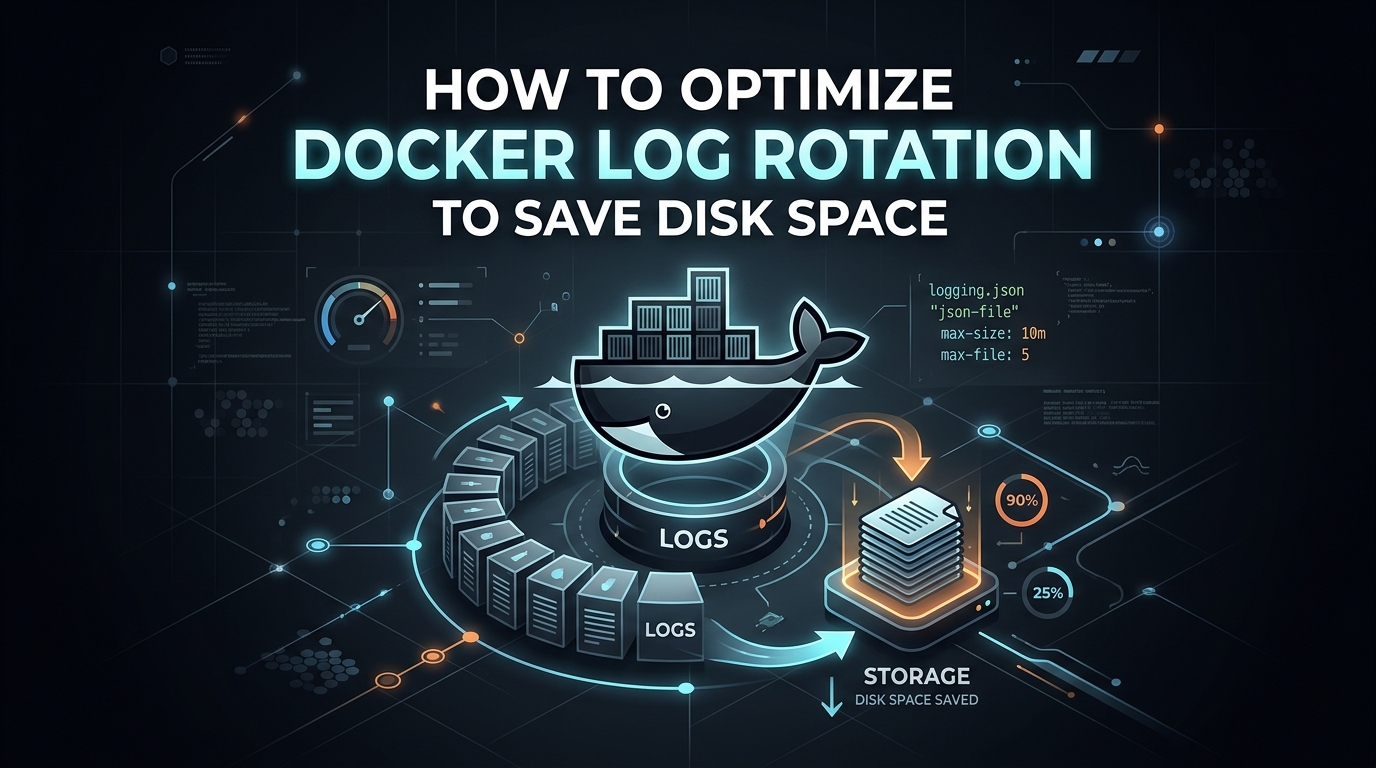
    In the world of container orchestration, we often focus on CPU and RAM limits, yet the most common cause of a “server down” event in a Dockerized environment is silent and insidious: disk exhaustion caused by unchecked container logs. By default, the Docker JSON-file logging driver writes to a single file per container. If your application is verbose, these files grow indefinitely until they consume every byte of available storage, leading to kernel panics and unresponsive services.

    As a sysadmin, you cannot rely on defaults. You must implement a proactive log rotation strategy. This guide explores how to implement the json-file log driver settings globally to ensure your storage remains predictable.

    Prerequisites

    • A Linux host running Docker Engine (CE or EE).
    • Root or sudo access to the host.
    • Basic knowledge of YAML syntax.

    The Strategy: JSON-File Driver Optimization

    The json-file driver is Docker’s default, but it lacks rotation policies out-of-the-box unless configured in the Docker daemon configuration. We will set two critical parameters:

    • max-size: Limits the size of a single log file before it is rotated (e.g., 10m).
    • max-file: Sets the maximum number of log files to keep for a single container (e.g., 3).

    The Configuration Procedure

    To enforce this globally, modify your /etc/docker/daemon.json file. Note that this configuration only applies to newly created containers. Existing containers must be recreated to inherit these settings.

    # Backup existing configuration
    

    sudo cp /etc/docker/daemon.json /etc/docker/daemon.json.bak

    # Update daemon configuration

    cat <

    {

    "log-driver": "json-file",

    "log-opts": {

    "max-size": "50m",

    "max-file": "3"

    }

    }

    EOF

    # Reload daemon and restart Docker

    sudo systemctl daemon-reload

    sudo systemctl restart docker

    Automating Container Re-creation

    Since the daemon config doesn’t affect running containers, you need a script to safely recreate them without losing critical application state if you use volumes. The following script identifies running containers and triggers a recreate.

    #!/bin/bash
    

    # Script: rotate_logs.sh

    # Description: Safely re-create containers to apply new log rotation policies.

    set -e

    LOG_FILE="/var/log/docker_rotation.log"

    log() {

    echo "$(date '+%Y-%m-%d %H:%M:%S') - $1" | tee -a "$LOG_FILE"

    }

    log "Starting log rotation enforcement..."

    # Get list of all running containers

    CONTAINERS=$(docker ps -q)

    for container in $CONTAINERS; do

    name=$(docker inspect --format '{{.Name}}' "$container" | sed 's/\///')

    log "Recreating container: $name"

    # Note: In a production environment, ensure you use docker-compose

    # or recreate containers with the exact original flags.

    # This is a conceptual example for manual re-creation.

    # docker-compose up -d --force-recreate

    done

    log "Process complete."

    Edge Cases and Risks

    Database Consistency: If your container runs a database (PostgreSQL, MySQL), simply killing and recreating it is usually safe because data is persisted in a volume. However, always ensure your volumes are mounted before recreating to prevent data loss.

    Log Loss: Setting max-file to 3 means you only keep 150MB of logs (50MB x 3). If your auditing requirements demand 30 days of logs, this approach is insufficient. In such cases, use an external log aggregator like ELK, Splunk, or Graylog.

    Network Interruptions: If you are using a log driver like syslog or fluentd, verify your network connectivity. If the destination becomes unreachable, the Docker daemon may block container I/O, effectively freezing your applications.

    How to Restore Logs

    If you discover that your rotation settings were too aggressive and you need to recover logs that have been rotated out, you must rely on your backup strategy. Docker does not provide a “restore” button for rotated logs.

    1. Filesystem Backups: If you use LVM snapshots or ZFS snapshots for your /var/lib/docker/containers directory, revert to a previous snapshot to recover the rotated files.
    2. Log Aggregator: If you have configured an external forwarder, you must query your log indexing database (e.g., Elasticsearch) to retrieve the historical data.
    3. Manual Archive: If you need to increase retention, simply edit /etc/docker/daemon.json, update max-file to a higher integer, and restart the daemon. This will apply to all containers started from that point forward.

    Pro-Tip: Always monitor your disk space using df -h in combination with du -sh /var/lib/docker/containers/* to identify “rogue” containers that might be bypassing your limits due to legacy custom configurations.

  • Automated backups for Docker containers on Linux using rsync

    Automated backups for Docker containers on Linux using rsync

    Architecting Robust Docker Data Persistence: A Production-Grade rsync Backup Strategy

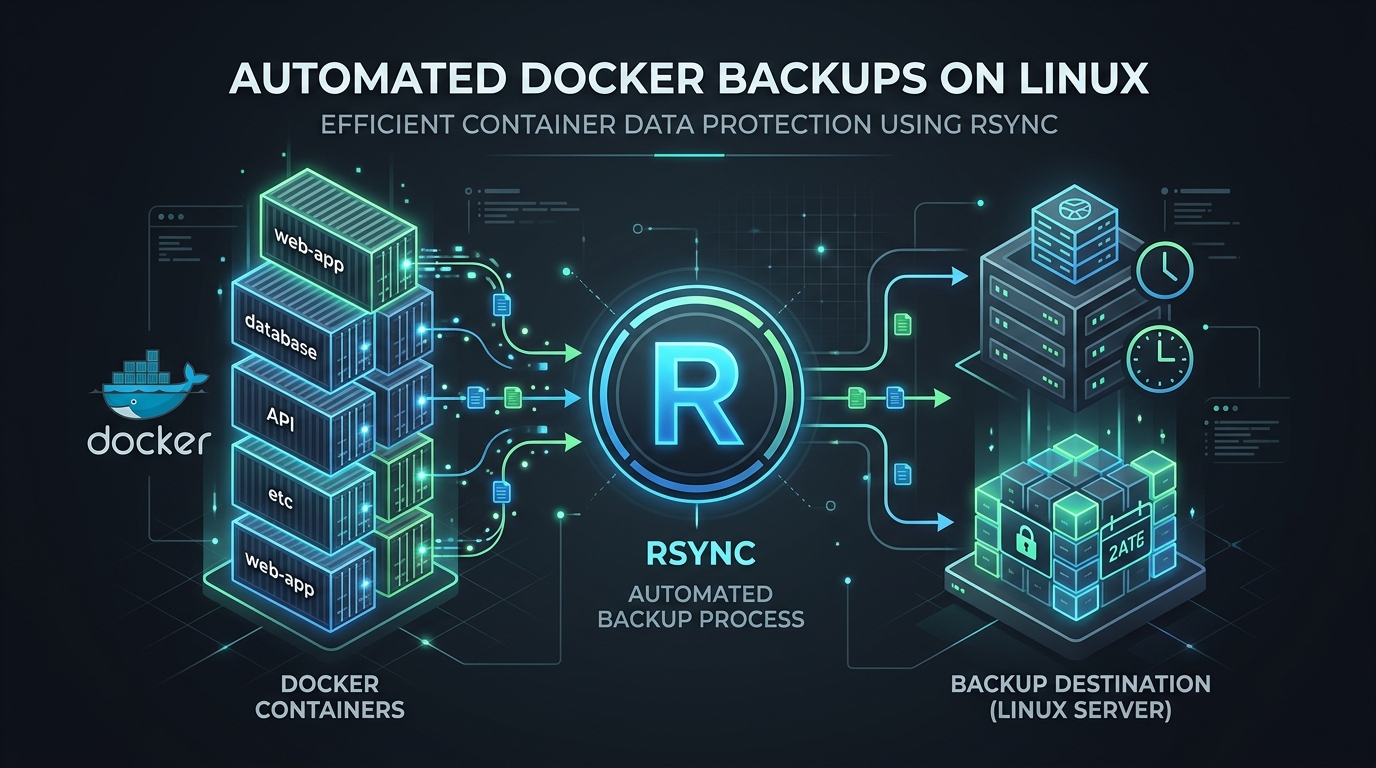
    In the containerized ecosystem, the “ephemeral” nature of Docker containers is a feature, not a bug. However, the data stored within volumes is persistent and mission-critical. Many administrators fall into the trap of using docker cp or simplistic tarball snapshots. While these work for homelabs, they are insufficient for production environments where consistency, automation, and speed are non-negotiable. Today, we implement a hardened backup strategy using rsync, the industry standard for differential, low-overhead data synchronization.

    Prerequisites

    • Root/Sudo access: Necessary for accessing Docker volume paths under /var/lib/docker/volumes.
    • rsync installed: Available on virtually every Linux distribution (apt install rsync or yum install rsync).
    • Dedicated Backup Storage: An external mount, a secondary disk, or an offsite location (NFS/S3/SSH).
    • Read-Only access to target: Ensure the user running the script has permission to write to the backup destination.

    The Strategy: Why rsync?

    Unlike standard archival tools, rsync calculates delta-transfers. If you have a 10GB database volume and only 5MB of data changed, rsync transfers only that 5MB. This reduces I/O pressure on your production disks and drastically minimizes the backup window. When combined with Docker’s pause/unpause mechanism, we achieve a high degree of data consistency.

    Production-Grade Backup Script

    The following script manages container state, executes the incremental sync, and handles basic error reporting. Save this as /opt/scripts/docker_backup.sh.

    #!/bin/bash
    

    # Docker Volume Backup Script

    # Author: Senior SysAdmin

    # Usage: ./docker_backup.sh [container_name]

    set -e

    # Configuration

    BACKUP_ROOT="/mnt/backups/docker"

    DOCKER_PATH="/var/lib/docker/volumes"

    TIMESTAMP=$(date +"%Y-%m-%d_%H-%M-%S")

    LOG_FILE="/var/log/docker_backup.log"

    log() {

    echo "[$(date +'%Y-%m-%d %H:%M:%S')] $1" | tee -a "$LOG_FILE"

    }

    if [ -z "$1" ]; then

    log "ERROR: No container/volume name provided."

    exit 1

    fi

    VOLUME_NAME="$1"

    TARGET_DIR="$BACKUP_ROOT/$VOLUME_NAME"

    mkdir -p "$TARGET_DIR"

    log "Starting backup for: $VOLUME_NAME"

    # Graceful Pause: Minimize write impact

    log "Pausing container to ensure consistency..."

    docker pause "$VOLUME_NAME" || log "Warning: Could not pause container, continuing..."

    # Rsync execution

    # -a: archive mode, -v: verbose, -z: compress, -H: preserve hardlinks

    rsync -avzH --delete "$DOCKER_PATH/$VOLUME_NAME/_data/" "$TARGET_DIR/current/"

    # Unpause

    docker unpause "$VOLUME_NAME" || log "Warning: Could not unpause container."

    log "Backup completed successfully for $VOLUME_NAME"

    Addressing Edge Cases and Hazards

    Database Consistency: The script above pauses the container, which is effective for file-level snapshots. However, for databases like PostgreSQL or MySQL, a file-level sync while the DB is running (even if paused) can technically cause filesystem-level corruption if the DB is writing to the transaction log at the exact millisecond of the pause. Best Practice: Always perform a docker exec [container] pg_dump or mysqldump before running this rsync process to ensure a logical backup exists alongside the raw filesystem backup.

    Network Interruptions: If backing up to a remote server, use SSH keys with rsync. If the network drops, rsync is designed to resume where it left off, but you should implement a timeout mechanism in your cron job to prevent hung processes.

    Restoration: The Critical Path

    A backup is worthless if you haven’t validated the restoration process. Treat your restore procedure as a documented “Break-Glass” event.

    How to Restore

    1. Stop the Target Container: Never restore to an active volume.
      docker stop [container_name]
    2. Prepare the Destination: Ensure the Docker volume path is empty or ready to be overwritten.
      # WARNING: This deletes the corrupt/current data
      

      rm -rf /var/lib/docker/volumes/[container_name]/_data/*

    3. Restore the Data:
      rsync -avzH /mnt/backups/docker/[container_name]/current/ /var/lib/docker/volumes/[container_name]/_data/
    4. Fix Permissions: Docker volumes often require specific UIDs. Ensure the files match the original container’s expected owner.
      chown -R 999:999 /var/lib/docker/volumes/[container_name]/_data/
    5. Start the Container:
      docker start [container_name]

    Final Pro-Tip: The Cron Automation

    To automate this, add the script to your root crontab. I recommend running it during off-peak hours:

    0 3 * * * /opt/scripts/docker_backup.sh my_database_container >> /var/log/docker_backup.log 2>&1

    By keeping this script modular and logging to a central file, you maintain the observability required for a professional Linux environment. Remember: Test your restoration quarterly. A backup that hasn’t been tested is merely a hope, not a plan.

  • Automated backups for Docker containers on Linux using rsync

    Automated backups for Docker containers on Linux using rsync

    Architecting Production-Grade Automated Backups for Docker Containers with Rsync

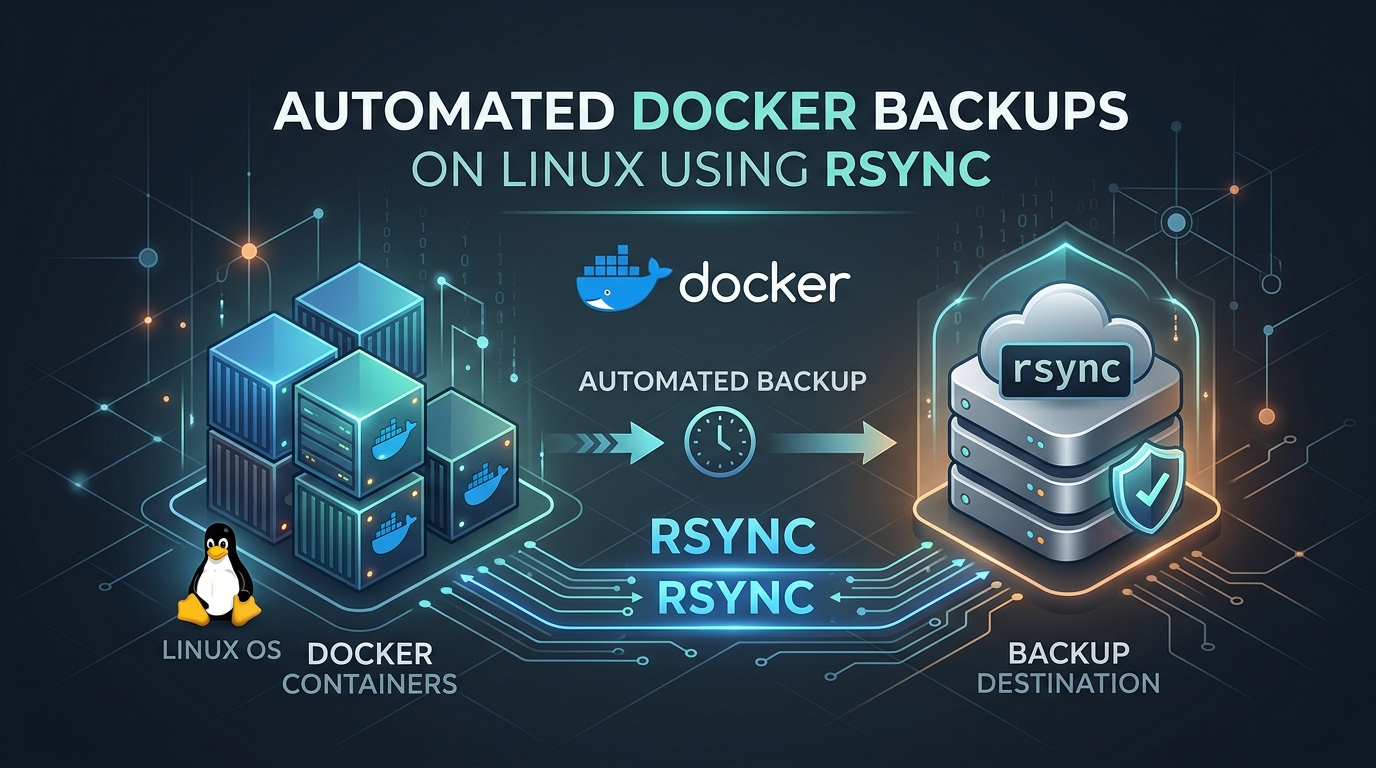
    In the containerized ecosystem, the “ephemeral” nature of containers often leads administrators to a false sense of security. While the container lifecycle is transient, your data—persistent volumes, database files, and configuration stores—is not. Relying on simple docker cp commands is a recipe for disaster. As a Senior SysAdmin, I advocate for a robust, filesystem-level approach utilizing rsync for differential synchronization. This method provides speed, efficiency, and a granular recovery path that high-level API snapshots often lack.

    Prerequisites

    Before implementing this solution, ensure your environment meets the following requirements:

    • Root or sudo access: Necessary for accessing Docker’s internal overlay storage and volume paths.
    • Rsync installed: Available on almost all distributions (apt install rsync or yum install rsync).
    • External Storage: Never store backups on the same physical disk or partition as the source data.
    • Systemd: We will use timers for scheduling, which is the professional standard for Linux automation.

    The Strategy: Atomic Synchronization

    We do not backup the container itself; we backup the data volumes. Backing up a running container is dangerous due to write consistency issues. Our script will follow these steps: Identify volumes, trigger a brief pause or flush (if applicable), perform the rsync differential copy to a local staging area, and finally, rotate logs.

    The Production-Grade Backup Script

    Save this script to /usr/local/bin/docker-backup.sh. Ensure you set chmod +x /usr/local/bin/docker-backup.sh.

    #!/bin/bash
    

    # Configuration

    BACKUP_SRC="/var/lib/docker/volumes"

    BACKUP_DEST="/mnt/backups/docker-volumes"

    LOG_FILE="/var/log/docker-backup.log"

    DATE=$(date +%Y-%m-%d_%H-%M-%S)

    # Error handling

    set -e

    exec 2>> "$LOG_FILE"

    log() {

    echo "[$(date '+%Y-%m-%d %H:%M:%S')] $1" | tee -a "$LOG_FILE"

    }

    log "Starting backup process..."

    # Ensure destination exists

    mkdir -p "$BACKUP_DEST"

    # Perform Rsync

    # -a: archive mode, -v: verbose, -z: compress, -H: preserve hard links, --delete: purge stale files

    rsync -avzH --delete "$BACKUP_SRC/" "$BACKUP_DEST/current/"

    # Create a snapshot (hard link) to save space while keeping history

    cp -al "$BACKUP_DEST/current" "$BACKUP_DEST/snapshot_$DATE"

    log "Backup completed successfully to $BACKUP_DEST/snapshot_$DATE"

    Addressing Edge Cases and Consistency

    Database Consistency: Rsyncing an active MySQL or PostgreSQL data directory while the engine is writing can result in corrupted database files (torn pages). Always use docker exec to run mysqldump or pg_dump into a flat file before triggering the rsync. Never assume filesystem-level snapshots are “database safe” for live systems.

    Network Interruptions: If backing up to a remote server, use the --partial flag in rsync to ensure interrupted transfers can resume without restarting from scratch.

    Automating with Systemd Timers

    Forget cron. Cron is outdated. Create /etc/systemd/system/docker-backup.timer for precise scheduling:

    [Unit]
    

    Description=Run Docker Backups Daily

    [Timer]

    OnCalendar=daily

    Persistent=true

    [Install]

    WantedBy=timers.target

    Enable it with systemctl enable --now docker-backup.timer.

    Restoration: The Critical Path

    A backup is worthless if you haven’t tested the restore. To restore a volume, follow these steps:

    1. Stop the container: docker stop [container_name]. Stopping is mandatory to prevent file locks.
    2. Identify the volume path: Run docker volume inspect [volume_name] to find the Mountpoint.
    3. Restore: Use rsync to move the data back from your snapshot:
      rsync -av /mnt/backups/docker-volumes/snapshot_YYYY-MM-DD/volume_name/ /var/lib/docker/volumes/volume_name/_data/
    4. Correct Permissions: Often, restored files might have mismatched UID/GIDs. Ensure the files match the original owner: chown -R 999:999 /var/lib/docker/volumes/volume_name/_data/ (Verify UID with ls -n).
    5. Restart: docker start [container_name].

    By using hard links (cp -al), you maintain a full daily history of your volumes while consuming only the disk space of the incremental changes. This is a battle-tested strategy that provides both recovery speed and storage efficiency.

  • Automated backups for Docker containers on Linux using rsync

    Automated backups for Docker containers on Linux using rsync

    Automated Docker Container Backups with Rsync

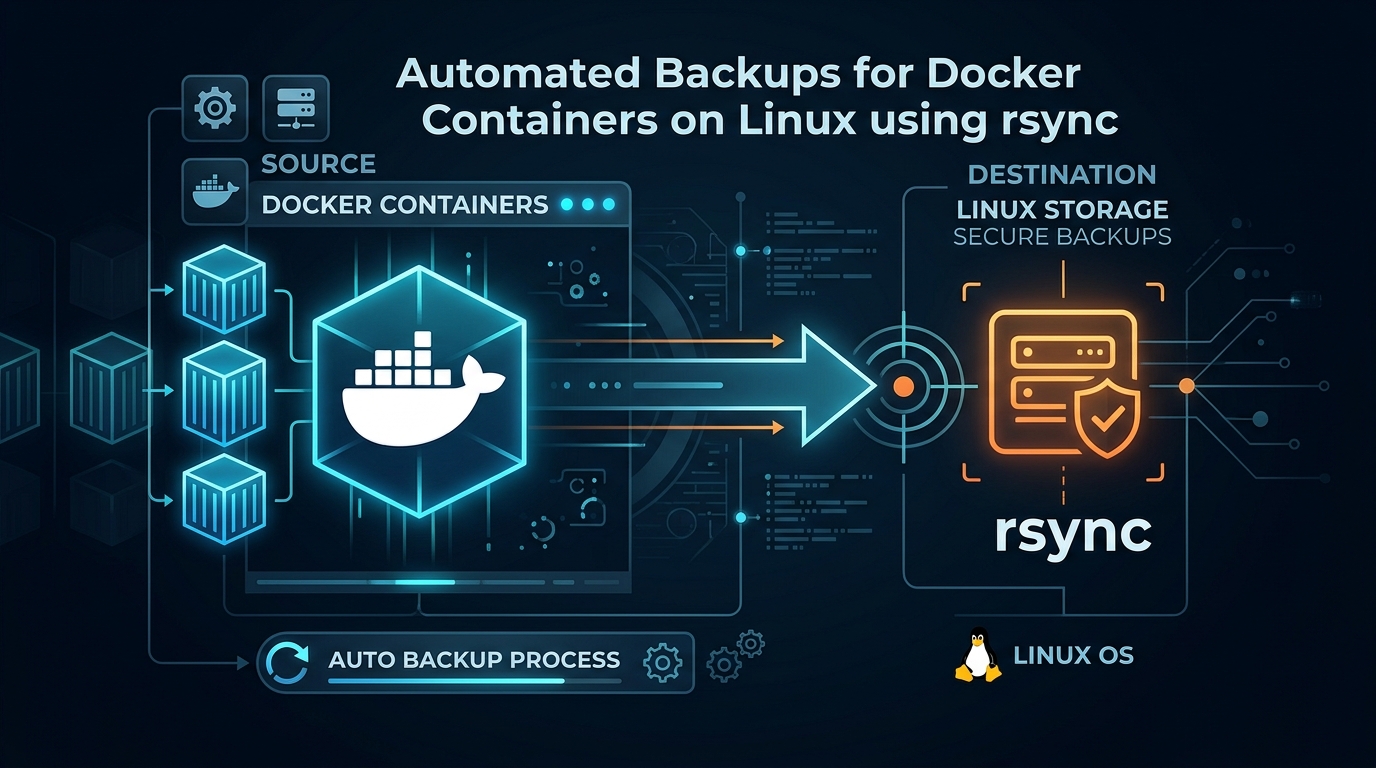
    As a Linux System Administrator, ensuring data integrity for Dockerized applications is paramount. While there are complex orchestration tools, a robust and lightweight approach involves syncing persistent volumes using rsync. This guide outlines how to automate the backup process for your containerized environments.

    The Strategy

    Docker containers are ephemeral, but their data resides in volumes or bind mounts. To create a reliable backup, we must identify the source directories on the host, compress the data, and synchronize it to a remote storage target. Using rsync is ideal because it handles delta transfers efficiently, saving bandwidth and time.

    Step 1: Identifying Data Directories

    First, inspect your running containers to locate the host paths mapping to your application volumes:

    docker inspect [container_name] | grep -A 10 "Mounts"

    Step 2: Creating the Backup Script

    Create a shell script on your host machine to handle the automation. This script should temporarily stop the database (if necessary for consistency) or simply sync the files if your application handles hot backups gracefully.

    #!/bin/bash
    

    # Backup directory configuration

    SOURCE_DIR="/var/lib/docker/volumes/my_app_data/_data"

    BACKUP_DEST="/mnt/backups/docker/my_app"

    DATE=$(date +%Y-%m-%d_%H%M%S)

    # Syncing files using rsync

    rsync -avz --delete $SOURCE_DIR $BACKUP_DEST/backup_$DATE

    # Remove backups older than 30 days

    find $BACKUP_DEST -type d -name "backup_*" -mtime +30 -exec rm -rf {} \;

    Step 3: Ensuring Consistency

    For databases like MySQL or PostgreSQL, simply syncing the files while the container is writing can lead to corrupted backups. It is highly recommended to perform a dump before the sync:

    # Perform a database dump
    

    docker exec db_container pg_dump -U username dbname > /path/to/dump.sql

    # Then trigger your rsync script

    /usr/local/bin/backup_script.sh

    Step 4: Automating with Cron

    To ensure this happens automatically, add the task to your crontab. Open the crontab editor with crontab -e and add the following entry to run the backup daily at 2:00 AM:

    0 2 * * * /usr/local/bin/backup_script.sh > /var/log/docker_backup.log 2>&1

    Best Practices for Production

    • Always test your restoration process. A backup is useless if it cannot be restored quickly.
    • Use SSH keys for rsync if you are pushing backups to a remote server.
    • Monitor your logs. Configure email alerts if the cron job exits with a non-zero status.
    • Consider using zstd or gzip to compress backup archives if disk space is limited.
  • The Zen of Morning Coffee: Optimizing your Caffeine Pipeline

    The Zen of Morning Coffee: Optimizing your Caffeine Pipeline

    The Zen of Morning Coffee: Optimizing your Caffeine Pipeline

    As a Linux System Administrator, I treat my morning routine with the same rigor as a production server deployment. Efficiency, reliability, and low latency are non-negotiable. Achieving the perfect cup of coffee is essentially a complex pipeline process where the goal is to optimize the extraction of flavor profiles while minimizing jitter-inducing errors.

    Step 1: Resource Provisioning (The Beans)

    Just as you wouldn’t run a mission-critical application on bloated, outdated dependencies, you shouldn’t use stale beans. Freshness is your primary requirement. Always source high-quality, single-origin beans roasted within the last 14 days. Store them in an airtight container to prevent oxidation and moisture degradation, which act as packet loss for your flavor profile.

    Step 2: Configuring the Extraction Environment

    Precision is key. A standard drip machine is equivalent to using a shared hosting environment: unpredictable and lacking in control. For optimal performance, move to a manual method like a V60 or a Chemex. This allows you to control variables like water temperature (set your PID to 93-96 degrees Celsius) and agitation levels.

    # Standard baseline configuration for extraction
    

    # Ratio: 1:16 (1g of coffee per 16g of water)

    # Grind size: Medium-fine (similar to sea salt)

    # Total brew time: 2:30 - 3:00 minutes

    Step 3: Monitoring the Throughput

    The grind size is your bottleneck. If the flow rate is too slow (over-extraction/bitter), adjust your burr grinder to a coarser setting. If the flow is too fast (under-extraction/sour), tighten the grind. Keep a log of your “builds” to identify what produces the cleanest output. A simple spreadsheet or a local text file works perfectly for this version control.

    # Example logging command for daily performance
    

    echo "2023-10-27: 20g beans, 320g water, 2:45 extraction, score: 9/10" >> ~/coffee_logs.txt

    Step 4: Maintenance and Cleanup

    A dirty machine is a recipe for system failure. Oils accumulate in your grinder and brewing equipment, causing rancid notes in subsequent batches. Implement a strict maintenance schedule. Flush your equipment with hot water immediately after use and perform a deep clean with a dedicated espresso machine detergent at least once a week.

    Conclusion

    Optimizing your morning caffeine pipeline is about removing variables that introduce noise. By maintaining consistent grind sizes, water temperatures, and ratios, you ensure that your “morning boot sequence” completes successfully every single day. A well-optimized pipeline doesn’t just wake you up; it prepares you to handle the complex, high-latency troubleshooting that defines the life of a SysAdmin.

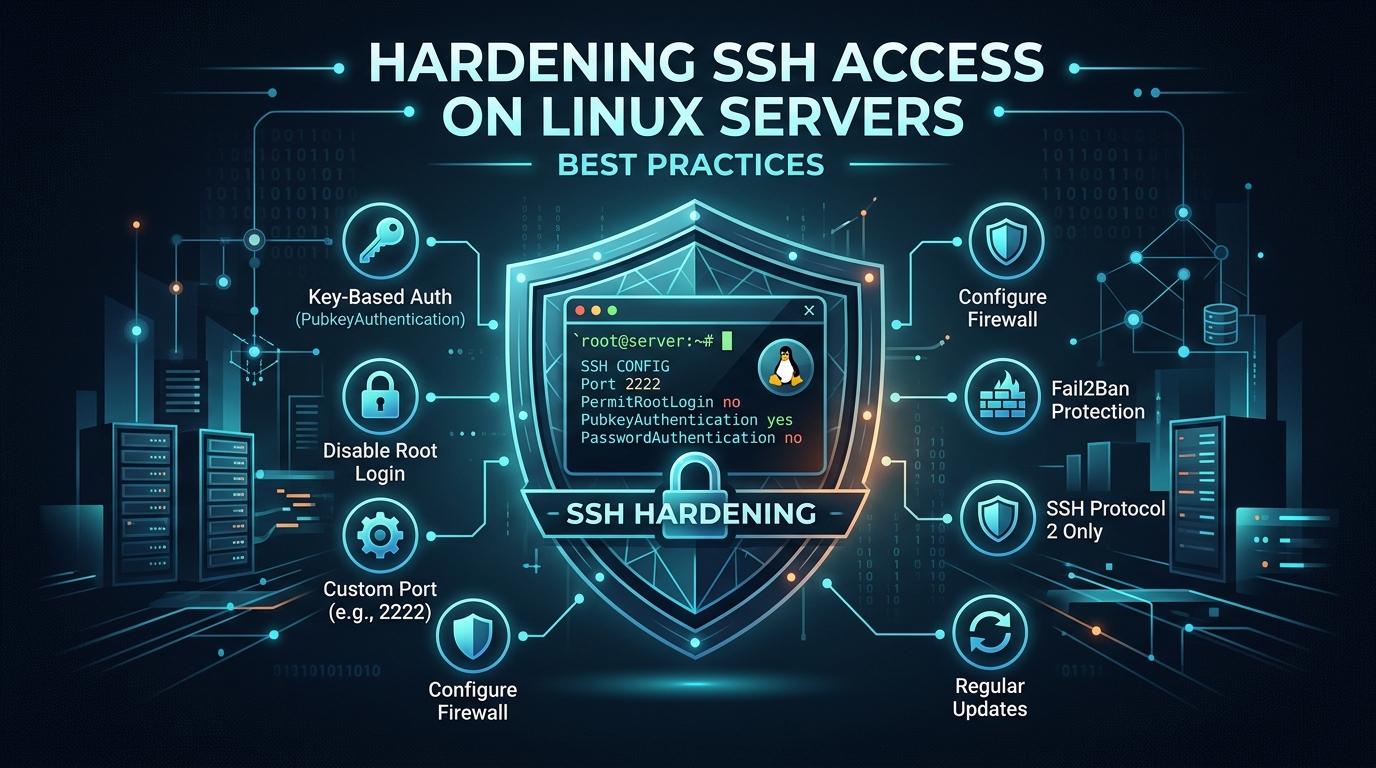
  • Hardening SSH access on Linux servers: Best practices

    Hardening SSH access on Linux servers: Best practices

    Hardening SSH Access: Best Practices for Linux Server Security

    Securing the Secure Shell (SSH) service is the most critical step in protecting a Linux server from unauthorized access. Since SSH is the primary gateway for remote administration, it is frequently targeted by automated brute-force attacks and credential stuffing bots. Below are the essential configurations to harden your SSH environment.

    1. Disable Password Authentication

    Passwords are susceptible to dictionary attacks and leaks. Transitioning to public-key authentication is the single most effective way to improve security. By requiring a private key pair, you ensure that even if an attacker discovers your username, they cannot gain access without the physical key file.

    # Edit /etc/ssh/sshd_config
    

    PasswordAuthentication no

    ChallengeResponseAuthentication no

    UsePAM yes

    2. Disable Root Login

    The root user is a universal target. By disabling root login, you force attackers to guess a valid username first, adding a layer of obfuscation. Administrative tasks should be performed using a standard user account with sudo privileges.

    # Edit /etc/ssh/sshd_config
    

    PermitRootLogin no

    3. Change the Default Port

    While security through obscurity is not a replacement for strong authentication, moving SSH from the default port 22 to a custom, non-standard high port significantly reduces the noise from automated botnets scanning for vulnerabilities.

    # Edit /etc/ssh/sshd_config
    

    Port 2222

    4. Limit User Access

    If only specific users require remote access, explicitly define them in the configuration file. This prevents other system service accounts from being used to log in via SSH.

    # Edit /etc/ssh/sshd_config
    

    AllowUsers your_username admin_user

    5. Implement Fail2Ban

    Fail2Ban is a daemon that monitors system logs for repeated failed authentication attempts. When a threshold is met, it automatically updates firewall rules (iptables or nftables) to ban the attacker’s IP address for a specified duration.

    # Install Fail2Ban
    

    sudo apt install fail2ban -y

    # Configuration snippet for jail.local

    [sshd]

    enabled = true

    port = 2222

    filter = sshd

    logpath = /var/log/auth.log

    maxretry = 3

    Key Takeaways for System Administrators

    • Always test your configuration changes with the sshd -t command before restarting the service to ensure there are no syntax errors.
    • Keep your SSH daemon updated to the latest stable version to patch known CVEs.
    • Consider using SSH certificates or hardware security keys (like Yubikeys) for multi-factor authentication if you are managing high-security environments.
    • Always keep at least one active, authenticated SSH session open while applying changes so you do not lock yourself out of the server.
  • The 7 Levels of systemd: Mastering Target Units and Dependencies

    The 7 Levels of systemd: Mastering Target Units and Dependencies

    The 7 Levels of systemd: Mastering Target Units and Dependencies

    In the ecosystem of modern Linux distributions, systemd has replaced the legacy SysVinit system. Understanding how it manages the boot process is essential for any System Administrator. At the heart of this architecture are Target Units. These units act as synchronization points, defining the state of the system by grouping services together.

    While the old runlevel system used a simple integer scale (0-6), systemd uses descriptive names. However, these targets still map functionally to those traditional levels. Here is how to navigate and master them.

    The Standard Systemd Targets

    • poweroff.target (Level 0): The state where the system is completely powered down.
    • rescue.target (Level 1): A minimal environment with a single-user shell, useful for system recovery and emergency maintenance.
    • multi-user.target (Level 3): The standard operational mode for servers. It provides a non-graphical multi-user environment.
    • graphical.target (Level 5): The desktop-oriented mode, which includes the multi-user environment plus graphical display managers.
    • reboot.target (Level 6): The state that triggers a system restart.

    Managing Targets with systemctl

    As an administrator, you will frequently need to check the current default target or switch between them dynamically. Systemd makes this straightforward with the systemctl command.

    To view the current default target, use:

    systemctl get-default

    If you need to change the system default (for instance, booting into a CLI environment instead of a GUI on a server), you can set it permanently:

    systemctl set-default multi-user.target

    To isolate a target immediately without rebooting, you can use the isolate command. Caution is advised, as this stops all services not required by the target:

    systemctl isolate rescue.target

    Understanding Dependencies

    Target units are essentially collections of symbolic links. When you target “multi-user.target,” systemd checks the “Wants” and “Requires” dependencies. These are stored in directories such as /etc/systemd/system/multi-user.target.wants/.

    You can inspect which services are associated with a specific target using the list-dependencies command:

    systemctl list-dependencies multi-user.target

    Why Dependencies Matter

    Mastering these levels allows you to optimize boot times and troubleshoot complex startup failures. If a service is failing to start, it is often due to an unmet “After=” or “Requires=” dependency defined in the unit file. By auditing the target dependencies, you can identify exactly which component is stalling the system boot process, ensuring your infrastructure remains robust, predictable, and maintainable.